
- Published on
CH2. Bits and Data Representation
- Authors

- Name
- seren-wib
Contents
- 2.1 Bits and bit storage
- 2.1.1 The smallest unit of information
- 2.1.2 Circuits that process bits
- 2.1.3 Circuits that store bits
- 2.1.4 Writing bit patterns compactly
- 2.2 Storage devices
- 2.2.1 Storing information in use
- 2.2.2 Long-term data storage
- HDD
- Flash memory
- SSD
- 2.2.3 Choosing and using secondary storage
- 2.3 Representing information with bit patterns
- 2.3.1 Representing characters
- 2.3.2 Representing numbers
- Integers
- Real numbers
- 2.3.3 Representing images
- Raster images
- Pixels
- Vector images
- Raster vs vector
- Image compression
- Common image file formats
- Compression using data characteristics
- 2.3.4 Representing video
- Video compression
- Codecs and containers
- 2.3.5 Representing audio
- 4 conversion steps
- 3 factors that set quality and data size
- Audio file vs MIDI
- PCM and storage methods
- 2.4 Representing numbers
- 2.4.1 Binary representation and arithmetic
- 2.4.2 Representing integers
- Two's complement
- 2.4.3 Representing real numbers
- Excess notation (bias)
- IEEE 754
- 4 steps to store as a float
2.1 Bits and bit storage
Represent → process → store → read
A computer represents information as bit patterns, processes it with logic circuits, and stores it in storage circuits
2.1.1 The smallest unit of information
- bit: smallest unit (0, 1)
- 1 byte = 8 bits
- bit pattern: something like 01010100
- The same bit pattern can mean different things depending on how it is interpreted.
- With something like ASCII, the computer can't on its own recognize 65 and turn it straight into A
2.1.2 Circuits that process bits
Boolean operations
- AND: true only if both are true
- OR: true if either one is true
- XOR: true only if they differ
- NOT: just the opposite
Logic gates
- Circuits that implement Boolean operations in hardware
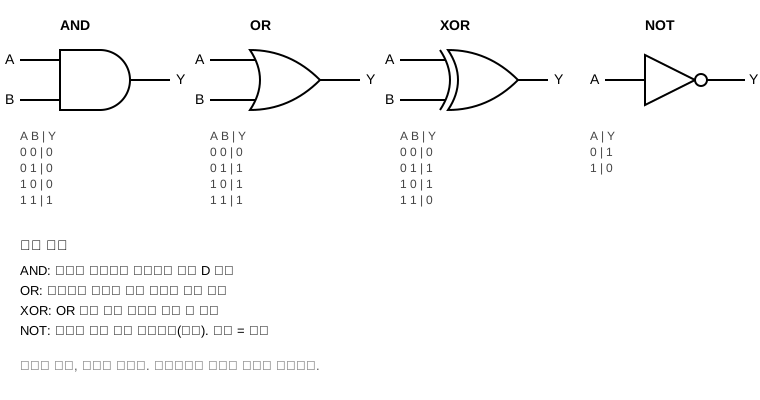
Logic circuits
- Circuits made by connecting several gates
- Compute values
- (A AND NOT B) OR (NOT A AND B) = XOR
CPU components
- control unit
- ALU (arithmetic logic unit): operations happen here
- registers
- cache
logic gate < logic circuit < CPU
2.1.3 Circuits that store bits
Flip-flop
- D (input) / Clock (signal telling it to store) / Q (output)
- Stores a value (1 bit only)
- D is stored into Q only when the clock arrives; if D changes in between, Q stays the same
- The stored value is kept until it is changed
Register
- Stores multiple bits
- A bundle of several flip-flops (8 flip-flops = 8-bit register)
2.1.4 Writing bit patterns compactly
- Hexadecimal notation
- Binary is hard for people to read, so values are shown this way. Mainly memory addresses, register values, color hex values.
- Stored in the computer as binary
- 1 hex digit = 4 bits
- Split the bits into groups of 4 from the right
- Symbols are 0–9 and A–F, written with a 0x prefix.
2.2 Storage devices
2.2.1 Storing information in use
Main memory
- Stores the instructions of the program to run and the data to process
- Slow and large
Registers
- What needs to be processed quickly right now
- Fast and small
Memory cell
- Cell: one slot of main memory divided into fixed-size units (1 byte)
- Address: the number attached to each cell
Memory read/write
- Read: the CPU specifies the data address and memory passes the value to the CPU. Naturally the original value is kept
- Write: the CPU gives data and an address to memory, and memory stores it at that location. Naturally the original value is overwritten
RAM & ROM
- ROM doesn't mean something like an SSD or HDD; it refers to a very small memory on the motherboard
Category RAM ROM Name Random Access Memory Read-Only Memory Access any location by address Yes Yes Read Yes Yes Write Freely Impossible or possible via a separate procedure, by type When power is off Contents are lost (volatile) Contents are kept (non-volatile) Main contents Running programs and data Basic programs needed for booting and initialization Memory capacity
- Grows in steps of 2^10
2.2.2 Long-term data storage
- Secondary storage
- Cheap, large, slow and non-volatile
- When a program runs: secondary storage -> main memory -> registers -> CPU
- HDD: stores magnetically
- SSD, USB: stores with semiconductors
- CD, DVD: stores optically
HDD
- Platter: the disk
- Track: a path inscribed on the disk
- Sector: a small area that a track is divided into
- Head: the pin-like thing that reads
- Seek time: time for the head to move to the track
- Rotational latency: time for the disk to spin so the sector comes to the desired spot
- Transfer time: time to actually read or write
Flash memory
- Non-volatile semiconductor memory
- NAND type; represents 0 and 1 by putting in and removing charge
- Small, light and shock-resistant
- Limited number of writes
- Stored (charged): 0, not stored: 1 (it's reversed)
SSD
- NAND flash + controller
- Controller: manages reads, writes and storage locations, and manages lifespan
- Small, quiet, shock-resistant and power-efficient, but expensive with a limited write lifespan
- SATA: interface used since the HDD days, slow.
- NVMe: communication protocol designed for SSDs, connected via PCIe
- M.2: a size and connector-shape standard. Not every M.2 is NVMe.
2.2.3 Choosing and using secondary storage
Choose the storage device that fits the purpose
Steps to use a storage device
- Partition: divide the storage space into partitions
- Format: create a file system in that area
- File system: the structure and rules for storing and finding files and folders
Common file systems
File system Main use NTFS Internal HDDs/SSDs on Windows exFAT USB drives/external SSDs shared between Windows and macOS APFS Macs and other Apple devices ext4 Linux systems
2.3 Representing information with bit patterns
2.3.1 Representing characters
Character code
- Characters are stored as numbers
- The sender and receiver must use the same character code
- ex) ASCII, UNICODE
ASCII
- Stores 2^7 values (7 bits)
- Computers add one leading 0 and store it as 1 byte.
- Can't represent things like Korean (Hangul)
UNICODE
Category Unicode UTF-8 What it does Assigns a unique number (code point) to every character and symbol in the world Converts code points into actual bytes (encoding) Notation U+ followed by hex (A → U+0041, 가 → U+AC00) Byte sequence (가 → 11101010 10110000 10000000) Number of bytes Not defined 1–4 bytes depending on the code point
- English is 1 byte, same as ASCII. Compatible with old English files.
- A Korean character usually takes 3 bytes. This byte conversion happens in UTF-8
2.3.2 Representing numbers
| Category | String "25" | Integer 25 |
|---|---|---|
| Composition | Two characters, '2' and '5' | A single number |
| How it's stored | Each character stored separately by its code | The whole number converted to binary and stored |
| Storage example | 00110010 00110101 ('2' = 50, '5' = 53) | 00011001 (8 bits) |
| Arithmetic | Not possible as is | Possible |
| Use | Display, names, phone numbers | Calculations like addition and multiplication |
Integers
- Positive numbers are represented directly in binary
- Negative numbers are usually represented in two's complement
- Once the number of bits is fixed, the range is fixed too
- 8-bit range
- Unsigned: 0~255
- Signed: -128~127
- Overflow: when a result goes outside the representable range (going past 255 for unsigned, or past -129 for negatives)
Real numbers
- Floating point: a way to represent very large or very small numbers, stored in three parts: sign, exponent, and mantissa (significand). IEEE 754 is the standard (float, double)
- Representation error: error from the limited number of bits. The closest value is stored
2.3.3 Representing images
Main division: raster VS vector
Raster images
- Represent an image as a grid of pixels
- A pixel is the smallest unit of a digital image
- Each pixel's position and color value are stored as bits
- Suited to images with complex color changes, like photos
Pixels
- Colors are made by mixing RGB brightness (8 bits per component)
- Size of one pixel = 8*3 = 24 bits, can represent 2^24 colors
- Uncompressed data size of a 19201080 image = 19201080*24 = 49.8Mb = 6.2MB
- Resolution: widthheight pixel count of an image, ex) 19201080
- Pixelation: pixel edges becoming visible when a raster image is enlarged
Vector images
- Represent points, lines, curves and shapes as mathematical information
- Store how to draw the shapes, not an array of pixels
- Edges stay intact when enlarged or shrunk
- Good for logos
Raster vs vector
| Category | Raster image | Vector image |
|---|---|---|
| Representation | Pixel color values | Point, line, curve, shape info |
| Enlarging | Pixels may show | Edges stay sharp |
| Suited for | Photos | Logos, icons, shapes |
| Common formats | JPEG, PNG, GIF, WebP | SVG |
Image compression
- Lossless compression: no information loss (good for screenshots and images with sharp edges)
- Lossy compression: some information loss (good for photos)
Common image file formats
| Format/extension | Image type | Compression/representation features | Main use |
|---|---|---|---|
| JPEG (.jpg, .jpeg) | Raster | Lossy, no transparency | Photos |
| PNG (.png) | Raster | Lossless, supports transparency | Drawings, screenshots of documents |
| GIF (.gif) | Raster | Lossless, up to 256 colors, supports animation | Simple animations |
| WebP (.webp) | Raster | Lossy and lossless, supports transparency and animation | Web images |
| SVG (.svg) | Vector | Stores shape information as text | Logos, icons, shapes |
Compression using data characteristics
| Method | Principle | Example | Effective when |
|---|---|---|---|
| Run-length encoding (RLE) | Consecutive identical values are represented as the value and repeat count | 0,0,0,0,0,1,1,1 → (0,5)(1,3) | Simple images with repeated identical colors |
| Huffman code | Short codes for frequent values, long codes for rare values | geese: e=0, g=10, s=11 → 1000110 | Large differences in value frequency |
| Difference encoding | Store the difference from the previous value instead of the value itself | 23,24,25,25 → 23,1,1,0 | Adjacent pixels have similar color values (also used in audio/video compression) |
2.3.4 Representing video
- Video = a sequence of images
- Frame: one still image
- Video + audio
- Frame rate: number of frames shown per second, unit: fps; 30 frames per second is 30fps
- Uncompressed data size = horizontal pixels × vertical pixels × bits per pixel × frames per second × duration (seconds)
Video compression
- Spatial redundancy: compress repeated neighboring colors within a single frame
- Temporal redundancy: store mainly the parts that changed from the previous frame
Codecs and containers
| Category | Codec | Container |
|---|---|---|
| Definition | Rules for representing, compressing and restoring video/audio | Format that holds video, audio, subtitles and playback info in one file |
| What it does | Compresses and restores data | Manages playback order and synchronization of multiple data streams |
| Examples | Video: H.264, H.265, AV1 / Audio: AAC, MP3 | MP4, MOV, MKV, WebM |
- How an MP4 file is made
- Video data → compressed with H.264
- Audio data → compressed with AAC
- Subtitle and timing information
- Put 1–3 into an MP4 container →
video.mp4
- Even with the same MP4 extension, the codecs inside can differ
video1.mp4→ H.264 video + AAC audiovideo2.mp4→ H.265 video + AAC audio
2.3.5 Representing audio
- Audio is analog, so it needs to be converted to digital
4 conversion steps
- Transduction: a microphone turns sound into a continuous electrical signal
- Sampling: measure the signal's amplitude at fixed time intervals
- Quantization: map the measured values to numbers in fixed intervals
- Encoding: store those numbers as bit patterns
3 factors that set quality and data size
- Sampling frequency: how many times per second the sound is measured (unit: Hz)
- Bit depth: how many bits represent each measured value
- Channels: number of independently stored sounds
The larger all three are, the higher the quality and the data size
Uncompressed data size = sampling frequency × bit depth × number of channels × duration (seconds)
Audio file vs MIDI
- An audio file is a recording; MIDI is sheet music.
| Category | Audio file | MIDI file |
|---|---|---|
| Stored content | Measured values of actual sound | Performance commands such as notes, instruments, velocity and timing |
| Playback | Restores the stored sound | An electronic instrument generates sound from the commands |
| Playback result | Plays the recorded sound | Can vary by playback device and sound source |
| Data size | Relatively large | Relatively small |
| Suited for | Recording voice, music, ambient sound | Electronic music composition, controlling instruments |
| Common extensions | .wav, .flac, .mp3, .m4a | .mid |
PCM and storage methods
- PCM: a method that measures sound at regular intervals and represents it as numbers. Data that has gone through the 4 conversion steps is PCM data
Storage method Compression File Main features PCM Mostly uncompressed WAV (.wav) Mostly stores measured values as is, so files are large FLAC Lossless .flac Reduces file size while restoring the original exactly MP3 Lossy .mp3 Drops some information to greatly reduce file size AAC Lossy .m4a, .mp4 Efficient compression, used for video and streaming - PCM is not a file format or compression codec but a way of representing digital audio data
2.4 Representing numbers
2.4.1 Binary representation and arithmetic
- Binary → decimal
- Decimal → binary
- Binary addition
2.4.2 Representing integers
Two's complement
The standard way modern computers represent signed integers
If the MSB is 0, the number is 0 or positive; if 1, negative
How to make a negative number
- Flip all bits (0 ↔ 1)
- Add 1
- Fit to the original number of bits
- Range: of the 2^n values, 0 falls on the positive side, so the negative side has one more.
Making −3 in 4 bits 3 0011 flip 1100 +1 1101 → −3 = 1101₂- Overflowing bits are discarded
- If the decimal value of a result is negative, flip it, add 1 again, and attach 1 at the MSB to mark it negative
−1 + −2 1 + −2 −1 + 2 1111 0001 1111 + 1110 + 1110 + 0010 ------ ------ ------ (1)1101 = −3 1111 = −1 (1)0001 = 1 ↑ discarded ↑ discarded- Overflow: when a result goes outside the representable range
7 + 2 in 4 bits
   0111  (+7)
 + 0010  (+2)
 ------
   1001  → interpreted as −7 (9 is outside the 4-bit range −8~7)
2.4.3 Representing real numbers
Binary fractions: places to the left of the point are 2^-n
Normalization: move the point so the leading digit is 1, and multiply by 2^n for the number of places moved.
Fixed point: the number before normalization. (Simple but narrow range)
Floating point: the number after normalization. (Can represent very large numbers but errors can occur)
ex) 5.75 (assume fixed point uses 4 integer bits + 4 fraction bits)
Category Representation of 5.75 Point position Fixed point 0101.1100₂ Fixed at a preset place Floating point 1.0111₂ × 2² Set by the exponent - Fixed-point range: 0 ~ 15.9375 (1111.1111₂), step 2⁻⁴ = 0.0625 → values of 16 or more, or values like 0.03 that don't fit the step, can't be represented exactly
- Floating point: the same significant digits move the point by changing the exponent (1.0111₂ × 2² = 5.75, × 2¹⁰ = 1472, × 2⁻⁶ = 0.0224609375)
Excess notation (bias)
Since the exponent can be negative, a fixed value (bias) is added to the actual exponent before storing.
No separate sign bit for the exponent field.
Stored exponent = actual exponent + bias
The bias for float is 127
Actual exponent Calculation Stored exponent 8-bit representation −2 −2 + 127 125 01111101 0 0 + 127 127 01111111 2 2 + 127 129 10000001
IEEE 754
| Category | Total | Sign | Exponent | Mantissa (fraction part) | Exponent bias |
|---|---|---|---|---|---|
| Single-precision float | 32 bits | 1 bit | 8 bits | 23 bits | 127 |
| Double-precision double | 64 bits | 1 bit | 11 bits | 52 bits | 1,023 |
- The leading 1 of a normalized number is not stored.
- double has a longer mantissa, so it is more precise
- Special exponent patterns
- If the exponent field is all 0s, the number is 0 or very close to 0
- If the exponent field is all 1s, it is infinity or NaN
- So normal numbers only use the values in between (-126~127 for float)
4 steps to store as a float
- ex) 101.11₂ as a 32-bit float
- Normalize (1.0111₂ × 2²)
- Sign bit (positive, so 0)
- Exponent (2+ 127 = 129 = 10000001)
- Mantissa (drop the leading 1: 01110000000000000000000)
- Final: 0 10000001 01110000000000000000000
- sign exponent(8) mantissa(23)
- If there is representation error, round to the nearest value and store