
- Published on
CH4. Operating Systems
- Authors

- Name
- seren-wib
Contents
- 4.1 The Evolution of Operating Systems
- 4.1.1 The Role of the OS and Why It Appeared
- 4.1.2 Batch Processing and Interactive Processing
- 4.1.3 Multiprogramming and Time Sharing
- 4.1.4 Multitasking and Parallel Execution
- 4.1.5 Computing Environments and Operating Systems
- 4.2 The Structure of Operating Systems
- 4.2.1 User Space and the Kernel (System Calls)
- 4.2.2 File Systems and I/O Control
- 4.2.3 Memory Management and Paging
- 4.2.4 Process Management
- 4.2.5 GUI Window Management
- 4.2.6 Starting the Operating System — Booting
- 4.3 Coordinating Computing Activities
- 4.3.1 Programs and Processes
- 4.3.2 Process States and State Transitions
- 4.3.3 CPU Scheduling and Time Slices
- 4.3.4 Interrupts and Context Switching
- 4.3.5 I/O Waits and Multiprogramming
4.1 The Evolution of Operating Systems
Batch processing → interactive processing → multiprogramming → time sharing → multicore parallelism
4.1.1 The Role of the OS and Why It Appeared
Operating system (OS): system software that manages hardware and software resources and sets up the environment programs run in. Programs can't touch the hardware directly; they go through the OS
Resource What the OS does CPU Scheduling: who goes first and for how long Memory Allocation and protection: no one invades anyone else's space Storage/files File system I/O devices Device drivers and I/O control Early computers: no OS; people prepared, ran and cleaned up each job by hand → the CPU sat idle during preparation
Operator: a person who gathered users' jobs (a batch) and fed them in one after another
Resident monitor: an early OS. Automated loading and switching jobs in software
Job: the unit submitted at once = program + input data + control commands
4.1.2 Batch Processing and Interactive Processing
Batch processing: collect jobs and process them all at once with no user involvement. e.g. end-of-month payroll
- Pros: minimal CPU idle time, maximum throughput
- Limits: no interaction while running, hard to debug, long turnaround time
Job queue: the list of jobs waiting to run. Not only FIFO (FCFS, priority, etc.)
Interactive processing: give input while it runs and get a response right away. e.g. type
lsin a terminal → result immediately- Limit: CPU time is wasted while the user hesitates over input
Real-time processing: must finish within a fixed deadline. e.g. an airbag in 10 ms
Interactive Real-time Goal fast response, convenience meeting the deadline If late annoying an accident Counterpart people sensors and machines
4.1.3 Multiprogramming and Time Sharing
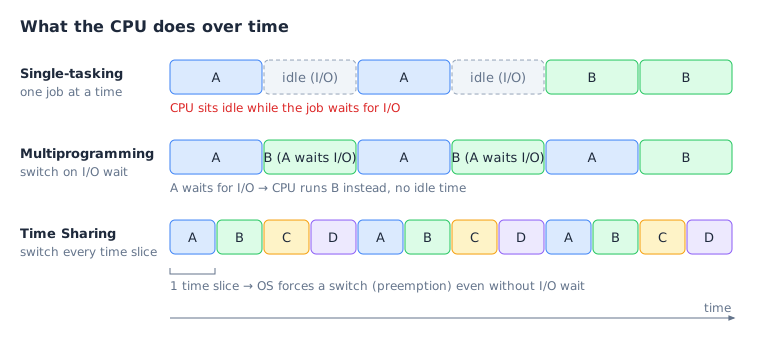
- The single-job problem: the CPU sits idle while waiting for I/O
- In the figure: the grey idle cells in the top row
- Multiprogramming: keep several programs in memory; when one waits for I/O, run another. The goal is CPU utilization
- In the figure: the middle row, B fills the idle slots
- Time sharing: cut CPU time into time slices and hand them out in turn. When time runs out, the OS forcibly switches (preemption). The goal is fast response
- In the figure: the bottom row, it switches every slot even without I/O
- Every switch between jobs needs a context switch
4.1.4 Multitasking and Parallel Execution
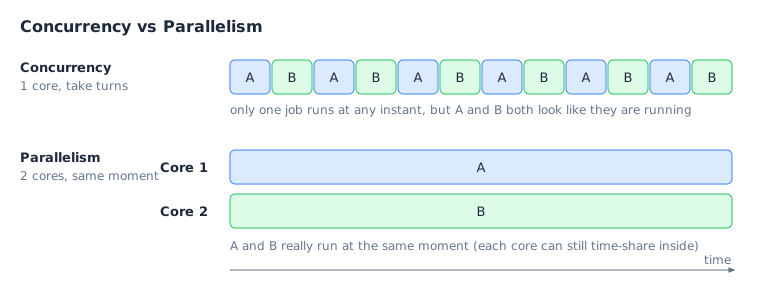
- Multitasking: coordinating several tasks so they progress at the same time on one system. e.g. editing a document + playing music
- Concurrency: looks simultaneous logically. One core runs them in turn
- In the figure: the top row
- Parallelism: actually runs at the same instant physically. Several cores
- In the figure: Core 1 and Core 2 at the bottom
4.1.5 Computing Environments and Operating Systems
Multi-user time-sharing system: many users connect to one server at once through terminals. The OS handles accounts and permissions, protection (isolation) and fair sharing
System administrator: the person who manages the system (the OS is the software that manages resources)
Multiprocessor: several CPU chips / multicore: several cores on one chip
- OS jobs: scheduling and load balancing, synchronization
- Limits: serial parts can't be parallelized, communication overhead between cores → it doesn't get faster by the number of cores
Embedded system: a built-in computer that does one specific job. e.g. car ECU, home appliances
- Constraints: limited resources, low power, high reliability, real time
RTOS: an OS that guarantees deadlines. The key isn't speed but predictability
Summary
Approach Problem solved Idea Batch processing the hassle of manual preparation collect and process automatically Interactive no interaction while running immediate input and response Multiprogramming CPU idle during I/O waits switch when waiting for I/O Time sharing CPU monopoly, slow response cut time finely and take turns
4.2 The Structure of Operating Systems
4.2.1 User Space and the Kernel (System Calls)
How software is classified: by the role it plays, not by which computer it's installed on
- Application software: does the user's work. Document editors, browsers, games, C code you wrote
- System software: manages hardware, supports development and execution. OS, device drivers, compilers and linkers, utilities
Utility: a tool for checking and managing the system. Backup, compression, antivirus, task manager. Included in the OS or installed separately
Some embedded devices have no OS: in a small temperature-and-fan controller, the control program itself handles registers, timers and interrupts
- PC: power → firmware and boot loader → OS → applications
- No OS: power → startup code (initialization) → control program → measure and control, repeat
UI: how the user tells the computer what to do and gets results
- CLI: type commands. Fast, easy script automation, light on resources. cmd, PowerShell, Bash
- GUI: windows, icons, mouse. Easy, but uses more memory and GPU
Shell: a command interpreter that parses what you type and hands it to the kernel. Lives in user space
- What it does: parses commands and arguments, runs built-in commands (
cd,echo,exit), asks to run external programs, sets up redirection>and pipes| - Type
hello.exe→ the shell parses it and finds the file → the kernel receives a system call, creates a process and allocates memory → it runs
- What it does: parses commands and arguments, runs built-in commands (
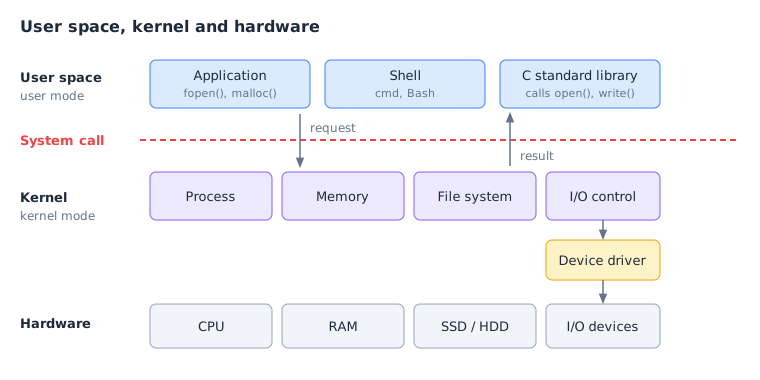
User space: where applications, the shell and admin tools run. Computation and its own memory are direct; hardware is off-limits
- In the figure: the blue row at the top
Kernel: core software that manages the CPU, memory, files and devices and keeps programs from invading each other. Protected by dual mode (user/kernel)
- Four main functions: process management, memory management, file system management, I/O device control
- In the figure: the purple row
System call: the channel a program uses to safely request kernel services. The kernel handles it and returns the result
- In the figure: the red dashed line, the request / result arrows
Kind Examples File open(),read(),write()Process fork(),exec(),exit()Memory brk(),mmap()Network socket(),connect()User/kernel mode = a split in CPU execution privilege. Not the same as the split between root/admin and regular accounts
Writing a file in C: C program (
fopen,fputs,fclose) → standard library (callsopen,write) → kernel (checks permissions) → driver → SSD/HDD- C standard library function: provided by the language, not the OS. Makes the system calls for you internally
- In systems programming,
open()andwrite()are sometimes called directly - Buffering: output isn't sent to the disk every time; it's collected in memory and sent at once, to cut down on I/O operations
4.2.2 File Systems and I/O Control
- File management by the kernel: create, open, read, write, delete; metadata (name, size, permissions, timestamps); the actual location on disk
- Directory: a hierarchy that groups files and subfolders by name
- Path: an expression of a file's location.
C:\course\data\input.txt - File Explorer is just a GUI application. The kernel does the real reading and writing
- Opening a file: request → verify → return → use → close
- Request: path + access mode (read/write)
- Verify: does the file exist, is there permission
- Return: hands back a unique value.
FILE *, file descriptor - Use: from then on, read and write with that value instead of the path
- Close: close it to give the resources back
- Abstraction: programs access files only through the value the OS gives them, without knowing sectors or physical locations
- Device driver: translates a standard OS request into control operations the device understands. Storage, network, graphics (VGA) drivers
- Why needed: every device works differently (diversity), apps and the OS don't need to know every device (convenience), the differences are hidden in the middle (abstraction)
- Flow: app (
fputs) → kernel (checks permissions) → driver (translates into device signals) → device controller and device (actually writes)
4.2.3 Memory Management and Paging
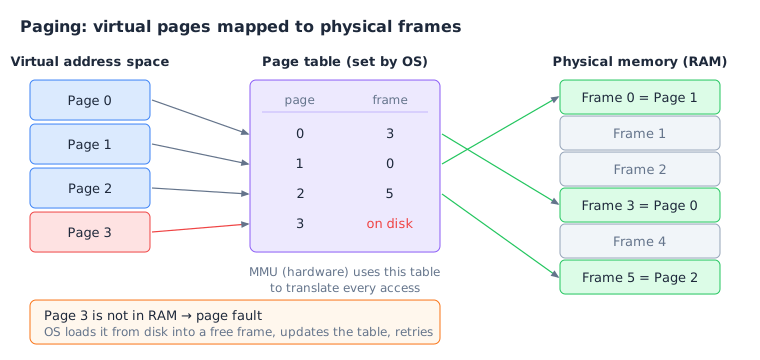
- What memory management does: allocation, linking logical addresses ↔ physical addresses, preventing unauthorized access (protection), reclaiming memory from finished programs
- Address space: each program's own space. Code, data, heap, stack. Accessing somewhere not allowed is a segmentation fault
malloc(): a C library function. Asks the kernel for memory internally- Virtual memory: separates the addresses a program uses (virtual) from real RAM addresses (physical)
- A and B can both use virtual
0x1000, but they map to different physical addresses0x8000and0xC000, so they don't collide
- A and B can both use virtual
- MMU: hardware that translates virtual → physical and checks permissions on every memory access
- The OS sets up the translation info and permissions; the MMU uses it to translate
- In the figure: the note under the middle table
- Paging: divides the virtual space and RAM into fixed blocks of the same size. The size varies by system; 4 KiB is common
- Page: a block on the virtual side / frame: a block on the physical side / page table: page → frame mapping + permissions
- Contiguous pages can sit in scattered frames in RAM
- In the figure: Pages 0–2 on the left go to Frames 3, 0 and 5
- Demand paging: don't load everything up front; bring only the pages needed into RAM as they're needed
- Page fault: the exception raised when the page being accessed isn't in RAM
- Valid but only on disk → the OS brings it in / bad address or permission violation → segmentation fault
- In the figure: the red Page 3
- Handling a page fault
- Access with a virtual address
- Not in RAM → page fault
- The CPU raises an exception and hands control to the kernel
- The OS checks validity and permissions
- Secure a free frame (page replacement if none)
- Load the page from disk into the frame
- Update the page table
- Re-run the interrupted instruction
- Page replacement: when RAM is full, push an unused page out to disk (swap out) to free a frame
- New page needed → not enough free frames → choose a page to evict → save it to disk if needed → unlink it and free the frame → load the new page and link it
- Benefits of virtual memory: separated and protected address spaces, running programs bigger than RAM (efficiency), no need to know RAM layout (abstraction)
- Thrashing: memory is so short that pages just keep swapping in and out. All the time goes to replacement instead of computation, and everything crawls
4.2.4 Process Management
- The scheduler picks the next job, and the dispatcher hands it the CPU
4.2.5 GUI Window Management
- Window control: position and size, show/hide
- Z-order: the front-to-back order of windows. The selected window comes to the top
- Focus: decides which window gets keyboard and mouse input and passes it to that program
- Click a window → target window fixed → input → delivered to that program
- Window layout, size and compositing (overlap, transparency) are handled by the OS graphics subsystem
- A GUI isn't a requirement for the kernel. Linux servers with no screen run just fine
- Windows puts some GUI functions inside the kernel for performance; Linux keeps them in user space for stability and independence
4.2.6 Starting the Operating System — Booting
Booting: from power-on or restart, initializing the hardware up to running the OS
Order: power → firmware → boot loader → kernel → system services and UI → user programs
Component What it does Stored in Firmware (UEFI) initializes hardware, picks the boot device (SSD/USB), loads the boot loader into RAM and hands over control flash memory on the motherboard (non-volatile) Boot loader loads the kernel into RAM and hands over control storage such as an SSD Kernel initializes memory, CPU and device management, starts system services storage → RAM At power-on the CPU starts executing code (firmware) at a fixed start address
System services: login, networking, etc. / UI: command line or graphical screen
BIOS: the firmware approach that played the same role in older PCs. Now mostly replaced by UEFI
4.3 Coordinating Computing Activities
4.3.1 Programs and Processes
Program: an executable file stored on disk. Instructions + initial data. Doesn't run by itself (static)
Process: one instance of a program loaded into memory and running. Created by the OS (dynamic)
- What it has: its own address space (Code, Data, Stack, Heap), CPU execution state (PC, registers), control info (PID, state), system resources (list of open files)
Run the same
example.exetwice and you get two processes with different PIDs and memory spaces (A: PID 101, B: PID 102)Process coordination: the OS managing processes so they share the CPU and memory fairly and run safely
Process memory layout
Region What it stores Characteristics Code machine instructions read-only (no changes while running) Data global and static variables allocated at start, kept until the end Heap dynamic allocation ( malloc,new)must be freed by hand, or memory leaks Stack local variables, parameters, return addresses created on a function call, released automatically when it ends (LIFO) Stack vs heap
Stack Heap Managed by compiler/OS (automatic) programmer/GC Allocated at run time, on a function call at run time, on a dynamic allocation request Speed fast (only the stack pointer moves) slow (has to find free space) Size small (usually a few MB) large (within virtual memory) Problems stack overflow memory leaks, fragmentation int a = 10;is on the stack (freed automatically);malloc→free(p)→p = NULLis on the heap (must be freed; NULL prevents a dangling pointer)
Execution context: the information to remember so a stopped execution can continue
- PC: address of the next instruction / register values: values mid-calculation (
i,sum) / SP: top of the stack / memory state: values in variables, stack and heap
- PC: address of the next instruction / register values: values mid-calculation (
Context vs state: context is information for resuming (PC, registers, SP); state is a label for whether it can run right now (ready, running, waiting)
PCB (Process Control Block): the data structure the OS creates for each process to manage it
- Contents: PID, execution state, saved execution context, scheduling info (priority), memory management info, resource info (open files)
Process table: the structure that manages all the PCBs together. An entry is created with the process and cleaned up after termination finishes. Implementation differs by OS
4.3.2 Process States and State Transitions
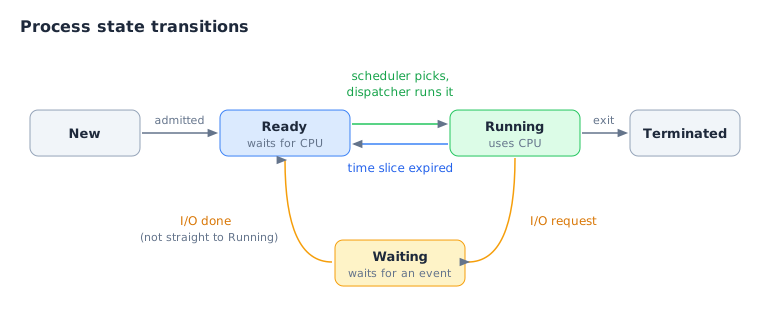
Ready: has everything except the CPU, waiting to be given the CPU. Waits in the ready queue
- In the figure: the blue Ready
Running: has the CPU and is executing instructions
- In the figure: the green Running
Waiting/Blocked: waiting for an event such as I/O completion; can't run even if given the CPU. e.g. waiting for a file read to finish
- In the figure: the yellow Waiting
Ready vs waiting: ready waits for the CPU and runs as soon as it gets it; waiting waits for an event and can't run even with the CPU
Ready queue: where the PCBs (pointers) of ready processes line up inside the kernel. FIFO, priority queue, multi-level queue, etc.
When does it move where
Transition When New → ready loaded into memory, ready to run Ready → running the scheduler picks it and the dispatcher hands over the CPU Running → ready time slice used up (timer interrupt) Running → waiting I/O request Waiting → ready I/O finished (I/O interrupt) Running → terminated finishes executing Finishing I/O doesn't mean running right away. It must go through ready and be picked by the scheduler
- In the figure: the I/O done arrow at the bottom goes to Ready
4.3.3 CPU Scheduling and Time Slices
- CPU scheduler: picks who uses the CPU next from the ready queue, following a policy such as order or priority
- Dispatcher: actually hands the CPU to the picked one. Context switch → kernel mode to user mode → switch to that process's address space → continue from its saved PC
- Flow: ready → scheduler ("who?") → dispatcher ("you, run") → CPU
- Time slice/quantum: the unit of time a process may use the CPU continuously. The typical policy is round robin. Its length depends on the OS and policy
- When a time slice expires
- Timer interrupt occurs
- The OS checks the CPU time used
- The current process goes to ready
- The scheduler picks the next process
- It doesn't have to be used up: I/O midway sends it to waiting, finishing returns the CPU right away. A time slice is an allowed window, not a quota to fill
4.3.4 Interrupts and Context Switching
Hardware interrupt: how a device tells the CPU an event happened. e.g. timer (time slice expired), I/O completion (disk, network)
Handling flow: user program running → interrupt → save return info (context) → kernel interrupt-handling code → resume the original process or (if needed) context switch to another process
Telling the three apart
Kind Cause Examples Hardware interrupt timer or external device timer expiry, I/O completion System call a program requests an OS service file read/write, process creation Exception an event in the instruction currently executing page fault, divide by zero, invalid instruction - An I/O request goes through a system call; I/O completion is reported by a device interrupt
Context switch: the procedure for changing which process runs on the CPU. Save the current one's context + restore the next one's
- A running → interrupt/time slice expires → into the kernel → save A's context to its PCB (PC, registers, SP) → the scheduler picks B → restore B's context (including the address space switch) → B runs
Misconception: it doesn't copy A's memory to B. A's and B's spaces both stay in memory as they are
Context-switch overhead: CPU time spent saving and restoring registers and switching permissions and addresses. No user computation happens during it
Round robin (RR): everyone takes turns on the CPU for the same time slice. Preemptive (forcibly taken away when time's up). Fair + fast response
- The front of the queue runs for a fixed time (e.g. 10 ms) → finished in time: terminate; not finished: back of the queue (time-slice expiry steps)
- Too long a slice and it becomes first-come-first-served / too short and it does nothing but context switches
First-come-first-served vs preemptive
FCFS (non-preemptive) Preemptive CPU control the process gives it up itself the OS can take it back forcibly Analogy a bank teller line a debate with speaking time limits Pros simple, few context switches fast response, multitasking Cons long waits context-switch overhead Examples FCFS, batch processing RR, Windows, Linux
4.3.5 I/O Waits and Multiprogramming
The whole flow of running a program
- Load into memory: the loader (OS) puts the
.exein memory, allocates the address space, creates the PCB and puts the start address in its PC field - Ready: has every resource except the CPU, registered in the ready queue
- CPU dispatch: the scheduler picks it → the dispatcher restores the PCB's PC and registers into the CPU and hands over control
- Running: repeats fetch → decode → execute
- Load into memory: the loader (OS) puts the
Multiprogramming seen as state transitions: A's I/O wait time becomes B's run time, so the CPU never sits idle
The A → B → A flow
- I/O request: running process A requests I/O
- Switch to waiting: the OS moves A to waiting
- Scheduling and dispatch: picks B from the ready queue, runs B
- I/O completion: the OS moves A to ready
- Resume: when the scheduler picks A again, A runs
Time → 1 2 3 CPU A computes B computes A computes I/O device A's I/O A's state running waiting running B's state ready running ready